A large share of visitors abandon a site that takes more than three seconds to load, which says a lot about why performance sits at the center of digital success. A slow storefront doesn’t just frustrate shoppers — it quietly costs revenue and hurts search rankings at the same time.
Getting WooCommerce optimization right takes a clear, logical path. The first move is always diagnosis — finding hidden bottlenecks before touching the database or server configuration. Knowing how to speed up a slow WooCommerce store properly is what keeps customers shopping smoothly and coming back.
If the technical side feels like a lot to take on, we can help. Call (404) 984-2226 or email business@knowcode.us for support with site performance.
Key Takeaways
- High bounce rates are frequently tied directly to slow page load times.
- Effective performance work starts by pinpointing specific bottlenecks, not guessing.
- Technical changes should follow a structured, diagnostic-first process.
- Stronger site performance correlates directly with higher conversion rates.
- Professional support is available for the more complex technical challenges.
How to Speed Up a Slow WooCommerce Store: Diagnose the Biggest Bottlenecks
A slow-feeling store needs its bottlenecks identified before anything else. Data-driven diagnostics should guide any serious WooCommerce speed optimization effort — a reliable baseline is what reveals exactly where speed is being lost.
Step 1: Test WooCommerce Load Times on Key Store Pages
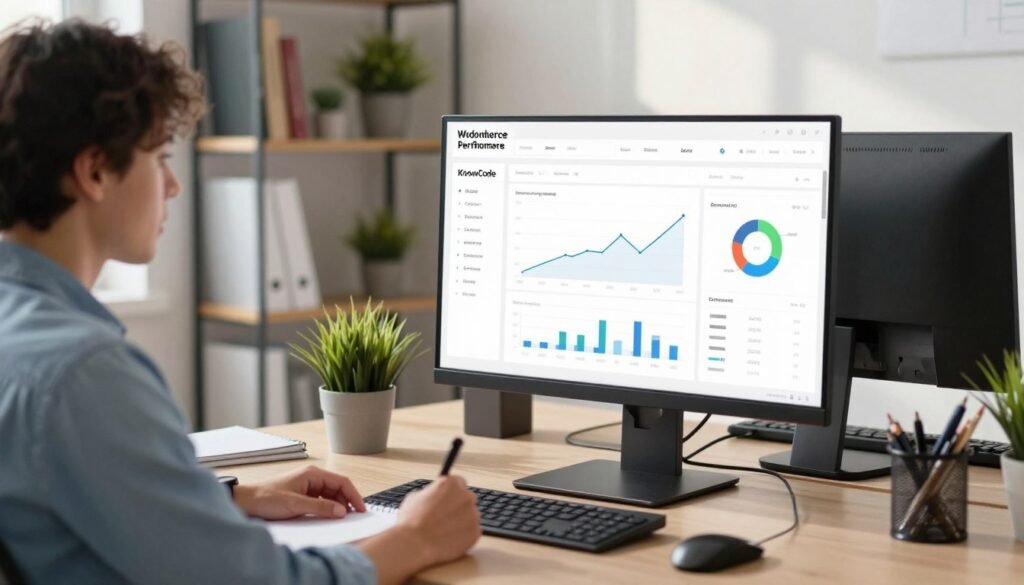
Measure the Homepage, Product Pages, Cart, and Checkout Separately
Each major page deserves its own test under real-world conditions. The homepage shapes first impressions, while checkout drives actual conversions — a slow page anywhere in that path can cost a sale before it’s finalized.
Compare Mobile and Desktop Performance for United States Shoppers
Since mobile traffic likely makes up the majority of visits, mobile responsiveness deserves priority. Comparing desktop and mobile metrics side by side reveals whether certain scripts are causing delays specifically on mobile devices.
Step 2: Identify Hosting, Server, and Database Limitations
Check Hosting Resources, PHP Version, and Server Response Time
The hosting environment underpins everything else about a store’s performance. Server response time and PHP version both matter directly for solid WooCommerce performance — without sufficient memory or processing power, even well-written code can load slowly.
Clean WooCommerce Sessions, Transients, Revisions, and Database Tables
Databases accumulate clutter over time that slows queries down. Regularly clearing expired transients, old revisions, and abandoned sessions keeps the database lean and responsive.
Step 3: Find Plugins, Themes, and Scripts That Slow the Store
Use Staging Tests to Isolate Plugin Conflicts
An overloaded plugin stack often creates conflicts that drag speed down. Deactivating extensions one at a time on a staging site isolates the biggest offenders safely, without putting the live store at risk.
Remove Unused Extensions and Limit Unnecessary Front-End Scripts
Every active plugin adds code the browser has to process. Reviewing what’s actually in use and removing what isn’t trims unnecessary overhead. For persistent conflicts or complex issues, call (404) 984-2226 or email business@knowcode.us.
| Metric Category | Target Goal | Priority Level |
|---|---|---|
| Server Response Time | Under 200ms | Critical |
| Total Page Load | Under 2.5 Seconds | High |
| Database Queries | Less than 50 | Medium |
| Mobile Speed Index | Under 3.0 Seconds | Critical |
Apply WooCommerce Optimization Techniques to Improve Site Speed
Once bottlenecks are identified, a structured set of optimization strategies keeps a store fast and reliable for every visitor going forward.

Step 4: Optimize Product Images and Media Files
Resize Images and Use WebP or AVIF Formats
Oversized, unoptimized images are one of the most common causes of slow load times. Resizing to actual display dimensions and converting to modern formats like WebP or AVIF delivers strong compression without a visible quality loss.
Enable Lazy Loading Without Delaying Important Product Images
Lazy loading defers offscreen images until a user scrolls to them — but above-the-fold product images should be excluded to protect a fast Largest Contentful Paint (LCP) score.
Step 5: Configure Caching, Compression, and Content Delivery
Set Up Full-Page Caching for Appropriate WooCommerce Pages
Caching generates static versions of pages and significantly lightens server load. Serving cached files can meaningfully improve site speed for returning visitors in particular.
Exclude Cart, Checkout, and Account Pages From Incompatible Caching
Dynamic pages like cart and checkout should never be cached — doing so risks incorrect order totals or broken sessions. Configuring the caching plugin to bypass these URLs keeps the shopping experience intact.
Enable Browser Caching, GZIP or Brotli Compression, and a CDN
A Content Delivery Network distributes assets across global servers, physically moving content closer to shoppers. GZIP or Brotli compression further reduces the data transferred between server and browser.
Step 6: Improve WordPress and WooCommerce Code Efficiency
Minify and Defer CSS and JavaScript Carefully
Minification strips unnecessary characters from code, and deferring non-essential scripts prevents them from blocking the initial render. Both should be tested carefully, since overly aggressive settings can break layout or functionality.
Load Scripts Only Where They Are Needed
Many plugins load their scripts on every page by default, even where they’re never used. Disabling unnecessary script loading page-by-page is a reliable way to improve overall performance.
Use a Lightweight Theme and Keep WordPress, WooCommerce, and Extensions Updated
A heavy, bloated theme works against performance from the outset. A lightweight, performance-focused theme paired with consistently updated software delivers both speed gains and security patches.
Step 7: Re-Test the Store and Monitor Performance After Each Change
Verify Add-to-Cart, Shipping, Payment, and Checkout Functionality
“Performance is not just about speed; it is about the reliability of the entire user journey.”
After every optimization change, core business functions deserve a direct check. Testing checkout, shipping calculations, and payment gateways confirms that technical improvements haven’t quietly broken the customer experience.
Track Core Web Vitals, Conversion Rates, and Server Response Times
Monitoring is ongoing, not a one-time step. Watching Core Web Vitals and conversion rates over time shows how changes are actually affecting real user behavior.
Need professional help applying these WooCommerce speed strategies? Call (404) 984-2226 or email business@knowcode.us to get started.
Conclusion
A fast store guides shoppers smoothly from product discovery straight through to checkout. Measuring bottlenecks, strengthening server resources, and optimizing media are what keep a shop fast and protect the shopping experience even during heavy traffic.
Tracking Core Web Vitals, conversion rates, and server response times after every change keeps this process genuinely data-driven, so speed improvements happen without compromising user experience. Regular maintenance is what keeps a platform competitive in a crowded market long-term.
Our team at KnowCode specializes in technical audits and performance tuning for growing brands. If you’re looking for a real WooCommerce speed boost, call (404) 984-2226 or email business@knowcode.us to talk through your specific site.
FAQ
How can we begin the process of WooCommerce optimization to ensure our store remains competitive?
Start with a full performance audit using tools like Google PageSpeed Insights or GTmetrix. Identify bottlenecks in server response time or bloated scripts, then apply targeted fixes. For help with diagnosis, call (404) 984-2226 or email business@knowcode.us.
What are the most effective WooCommerce slow site solutions for stores with large product catalogs?
Larger catalogs benefit most from database maintenance and high-performance hosting platforms like Kinsta or WP Engine. Regularly clearing transients, old product revisions, and expired sessions keeps performance stable as the catalog grows.
How do we improve WooCommerce site speed without sacrificing the quality of our product imagery?
Modern image formats like WebP or AVIF, applied through tools like ShortPixel or Imagify, reduce file size significantly while preserving visual quality across both mobile and desktop.
Which caching strategies provide the most significant WooCommerce speed boost for dynamic checkout pages?
Full-page caching through a tool like WP Rocket works well for static content, while cart, checkout, and account pages should stay excluded to avoid session conflicts. A CDN like Cloudflare adds further speed by serving assets closer to shoppers.
How to speed up a slow WooCommerce store when third-party plugins are causing significant lag?
Testing in a staging environment helps isolate resource-heavy extensions. Minifying CSS and JavaScript with a tool like Asset CleanUp stops unneeded scripts from loading. For a professional review, contact business@knowcode.us.
What technical steps should we take to ensure we are truly achieving the best WooCommerce speed optimization?
Beyond front-end fixes, confirm the server runs a current PHP version, enable GZIP or Brotli compression, and defer non-critical JavaScript so primary content loads first — all of which support stronger Core Web Vitals scores. Call (404) 984-2226 if the process feels like a lot to tackle alone.